
MCP
Connect Codex, Cursor, or Claude to RanklyBee to work with your articles, backlinks, outreach, leads, AI visibility, and search data.
Connect your AI client directly to RanklyBee's remote MCP server. Direct configuration does not require installing the published RanklyBee plugin. Sign in with your RanklyBee account through OAuth; no API token is needed.
https://api.ranklybee.com/mcpOnce connected, your AI client can read and act on every part of RanklyBee: articles, backlinks, outreach, leads, AI visibility, search performance, and distribution. What it may do is decided by the permissions you approve when you connect.
For guided backlink submissions, RanklyBee supplies your confirmed submission profile, eligible backlink sources, submission checks, and tracked results. Your AI client uses an interactive browser to fill third-party forms and perform submissions you approve.
Before you start
- Use an active paid RanklyBee Project with an active website.
- Complete and confirm the website's Backlink Submission Profile in RanklyBee.
- For backlink submissions, install the submission Skill below to give your client the complete workflow.
- For actual form submissions, enable an interactive browser or Computer Use tool. Reading a profile and preparing a plan do not require a browser.
Connect from the dashboard
The fastest way to connect is from RanklyBee. You do not need an API token; each client signs in with your RanklyBee account through OAuth.
Open MCP Connection
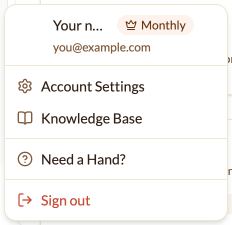
Open the account menu at the bottom of the sidebar and choose Account Settings, then select MCP Connection.
Pick your tool
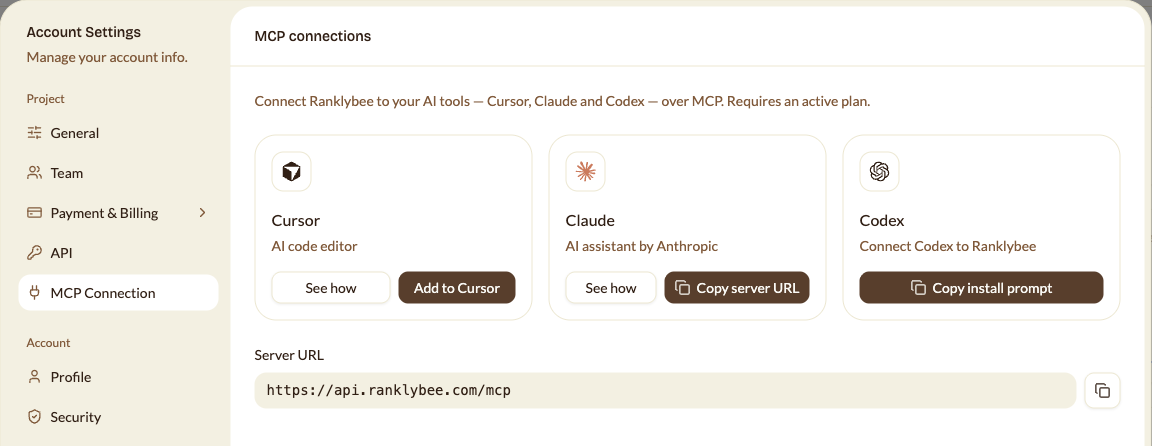
- Cursor: click Add to Cursor. Cursor opens and asks you to approve the RanklyBee server.
- Claude: click Copy server URL. In Claude, open Settings → Connectors, choose Add custom connector, name it
RanklyBee, and paste the URL. In Claude Code, run the command in Claude Code instead. - Codex: click Copy install prompt and paste it into Codex. It runs the setup commands from Codex for you.
Sign in and approve access
Your tool opens a RanklyBee sign-in and consent page in the browser. Sign in, tick the permissions you want this tool to have, and choose Allow. Permissions that change data, send email, or publish start unticked. Close the page when it confirms the connection.
Check the connection
Start a new chat in your tool and ask it to list your RanklyBee Projects. If no tools appear, restart the client first. See Limits and troubleshooting.
The dashboard shows the same server URL for every tool, so you can also copy it from the Server URL field and add it manually to any client that supports remote MCP servers. Connecting requires a Project with an active paid membership.
Connect your client manually
Use these steps when you prefer to configure the client yourself, or when you need to pin permissions.
Codex
Add the remote server and sign in:
codex mcp add ranklybee --url https://api.ranklybee.com/mcp
codex mcp login ranklybee --scopes backlink-submissions:read,backlink-submissions:submit
codex mcp list
Complete the RanklyBee login and consent page in your browser. Restart your client or start a new chat if the tools have not appeared.
These two scopes cover the backlink submission workflow. Add any other permissions you want to the --scopes list, separated by commas. The Copy install prompt button in the dashboard requests all of them.
The submission workflow needs both backlink-submissions:read and backlink-submissions:submit. Grant both on the consent page. OAuth permissions let the client call RanklyBee tools; each third-party submission still requires your approval.
Alternatively, add this entry to ~/.codex/config.toml, preserving your existing configuration:
[mcp_servers.ranklybee]
url = "https://api.ranklybee.com/mcp"
Install the Skill in your project's .agents/skills directory:
mkdir -p .agents/skills/backlink-submission
curl --fail --location https://ranklybee.com/api/skills/backlink-submission \
  --output .agents/skills/backlink-submission/SKILL.md
Use $backlink-submission in a new Codex chat, or ask it to check your backlink submission profile. See the Codex MCP documentation for configuration and OAuth options.
Cursor
Add the ranklybee entry to your project's .cursor/mcp.json or your global ~/.cursor/mcp.json. Merge it into any existing mcpServers object:
{
  "mcpServers": {
    "ranklybee": {
      "url": "https://api.ranklybee.com/mcp"
    }
  }
}
Open your MCP settings, enable RanklyBee, and complete its OAuth authentication flow. You do not need to enter a client secret or API token.
For the submission workflow, grant both backlink read and submit permissions. If the connection was previously authorized with only read access, follow Reconnect with submission permissions.
Install the Skill in the project:
mkdir -p .cursor/skills/backlink-submission
curl --fail --location https://ranklybee.com/api/skills/backlink-submission \
  --output .cursor/skills/backlink-submission/SKILL.md
Start a new Agent chat and select /backlink-submission, or ask it to check your profile. See the Cursor MCP documentation and Skills guide.
Claude Code
Add RanklyBee to your user configuration so it is available across projects:
claude mcp add --transport http --scope user ranklybee https://api.ranklybee.com/mcpStart Claude Code, run /mcp, and select RanklyBee to authenticate. Complete the RanklyBee login and consent page.
Grant both backlink read and submit permissions. If your server configuration pins oauth.scopes, use "backlink-submissions:read backlink-submissions:submit". A pinned read-only scope cannot authorize the full workflow.
Install the Skill in the project:
mkdir -p .claude/skills/backlink-submission
curl --fail --location https://ranklybee.com/api/skills/backlink-submission \
  --output .claude/skills/backlink-submission/SKILL.md
Start a new session and run /backlink-submission. See the Claude Code MCP documentation and Skills guide.
Enable browser interaction
If your client already has an interactive browser or Computer Use tool, use that capability. Otherwise, Playwright MCP provides a local browser that the agent can inspect, fill, and click. It requires Node.js 18 or newer.
For Codex:
codex mcp add playwright -- npx -y @playwright/mcp@latestFor Claude Code:
claude mcp add --transport stdio --scope user playwright -- npx -y @playwright/mcp@latestFor Cursor, merge this entry into mcpServers alongside ranklybee:
{
  "playwright": {
    "command": "npx",
    "args": ["-y", "@playwright/mcp@latest"]
  }
}
Restart the client and enable the browser tools. Ask the agent to open a page to confirm the browser works before starting a submission. If it reports a missing browser, use its browser installation tool or follow the Playwright setup instructions.
The local browser may use a different session from your everyday browser. Complete any destination-site login in the browser the agent opened. You can take over when a site requires verification. A search or page-fetch tool alone cannot fill and submit forms.
Make your first request
Start with a read-only check:
Use the backlink-submission Skill to check whether my RanklyBee submission
profile is ready. Show my available Projects if needed. Do not create
a submission job or submit anything yet.
The agent lists your Projects and checks the selected website's profile. It is ready only when status is confirmed, confirmedVersion matches version, and isReady is true.
Then prepare a submission:
Use the backlink-submission Skill to find eligible sources for my website.
Help me select a source, run the submission checks, and show the exact
content for approval before creating a job or submitting the form.
After approval, the agent creates one tracked job, fills the form with confirmed fields, performs the approved action, and records the observed result. Some sources require an account, verification, payment, or manual review. For email sources, the agent prepares a draft for you to send.
Permissions
Each permission (OAuth scope) unlocks the tools for one part of RanklyBee. A read scope only reads; a write scope can change data, spend plan allowance, and, where noted, act outside RanklyBee.
| Scope | Read | Write |
|---|---|---|
site:read / site:write | Projects, websites, site profile, plan usage | Update the site profile, re-analyze the website |
articles:read / articles:write | Content plan, articles, keywords, improvements, settings, products | Plan, write, edit, approve, and publish articles; manage keywords and products |
backlinks:read / backlinks:write | Tracked backlinks and the backlink source library | Track, check, and close backlinks |
backlink-submissions:read / :submit | Submission profile, sources, job status | Create submission jobs and record outcomes |
outreach:read / outreach:write | Prospects, contacts, templates, drafts, conversations, automation | Find prospects and contacts, write drafts, and send email from your connected mailbox |
leads:read / leads:write | Leads, mentions, monitoring setup, alert rules | Stages, replies, keywords, customer profiles, scans, alert rules |
ai-visibility:read / ai-visibility:write | Prompts, answers, competitors, citations, sentiment | Add, edit, run, and delete prompts; manage topics and competitors |
search:read / search:write | Search Console performance, SEO health, diagnoses, logged changes | Sync Search Console, log changes, run diagnoses |
distribution:read / distribution:write | Campaigns, posts, page talking points | Manage campaigns and approve posts for publishing to your social accounts |
The consent page lists each permission your client asks for with a checkbox, and the connection receives only the ones you tick. Every read scope and backlink-submissions:submit start ticked; the other write scopes start unticked, so a client never gets them unless you turn them on. A client that does not ask for specific scopes is offered the ticked set only.
Your client only lists the tools your connection can run. To add a permission later, follow Reconnect with submission permissions and request the scopes you need. Whatever the scope, your Project role and plan limits still apply, and connecting integrations, billing, and member management stay in the dashboard.
Ask your client to confirm with you before it publishes an article, sends an email, or approves a social post. RanklyBee marks these tools as acting outside RanklyBee so clients can prompt for approval.
Available backlink tools
| Tool | Purpose |
|---|---|
list_backlink_submission_projects | List your accessible Projects and active websites. |
get_backlink_submission_profile | Read your submission profile and readiness state. |
list_backlink_submission_sources | Find available sources and their submission destinations. |
preflight_backlink_submission | Check eligibility, profile confirmation, duplicate backlinks, and daily capacity. |
create_backlink_submission | Create one idempotent tracked job after approval. |
get_backlink_submission | Read a job's status and recorded outcome. |
record_backlink_submission_outcome | Record the result observed in the browser. |
Your client may prefix these tool names with ranklybee. The tools for the other areas are listed by your client once the matching permission is granted; start with list_projects and list_sites to find the Project and website IDs they need.
Limits and troubleshooting
Each Project can start up to 15 submission attempts per Project-local calendar day. Creating a job consumes an attempt, including attempts that later fail or require verification. Creating a job does not submit a form, and a submitted form does not guarantee an accepted or indexed backlink.
| Message or symptom | What to do |
|---|---|
AUTH_REQUIRED or HTTP 401 | Authenticate RanklyBee through the client's MCP login flow. Re-authenticate if your connection has expired. |
SCOPE_REQUIRED, needs additional permissions, or 403 after trying upscoping | Follow Reconnect with submission permissions. Refreshing a read-only token does not add submit permission. |
UPGRADE_REQUIRED | Use a Project with an active paid membership. |
PROFILE_CONFIRMATION_REQUIRED or PROFILE_INCOMPLETE | Complete and confirm the profile in RanklyBee before retrying. |
SITE_REQUIRED | Select one of the Project's active websites. |
BACKLINK_INVENTORY_NOT_READY | Wait for the backlink inventory to finish loading, then check again. |
BACKLINK_ALREADY_EXISTS | Review the existing tracked backlink instead of submitting again. |
DAILY_LIMIT_EXCEEDED | Wait until the next Project-local calendar day. |
| No RanklyBee tools appear | Check the endpoint and enabled MCP configuration, then restart the client or start a new chat. |
| Browser tools are unavailable | Enable browser interaction; the agent can still prepare a plan. |
The workflow pauses for CAPTCHA, MFA, email verification, or other required human actions. If the final action times out or its outcome is unclear, record needs_verification and inspect the destination before doing anything else. Do not repeat the final submit action blindly.
Reconnect with submission permissions
An existing read-only connection can continue reading profiles and job status. To submit, clear the client's saved RanklyBee authentication and sign in again, granting both backlink-submissions:read and backlink-submissions:submit. A token refresh preserves the permissions you previously granted; it does not increase them.
For Codex:
codex mcp logout ranklybee
codex mcp login ranklybee --scopes backlink-submissions:read,backlink-submissions:submit
For Claude Code:
claude mcp logout ranklybee
claude mcp login ranklybee
You can also use Clear authentication in Claude Code's /mcp menu and authenticate again. Update a pinned oauth.scopes value to include both permissions before reconnecting.
In Cursor, use the RanklyBee connection's OAuth logout or reauthentication action in MCP settings, then authenticate again. If the connection is managed from Cursor's web interface, disconnect it there before reconnecting. Grant both permissions on the RanklyBee consent page; toggling the server off and on does not grant new permissions.
Restart the session if it still uses the previous authorization. Then check the profile and rerun the failed submission check. Reuse the existing idempotency key if a job was already created; never repeat a third-party form's final submit action merely because you reconnected.
You can also download the submission Skill and save it as SKILL.md in the matching directory above.